


|
|
|
This article will help you manage the drills within your app.
Backing up your drills
In this example, we have two drills which we’d like to back up:
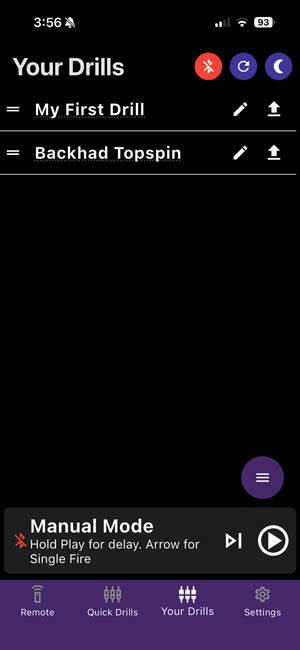
To back these up, tap on the purple hamburger menu icon to bring up this menu:
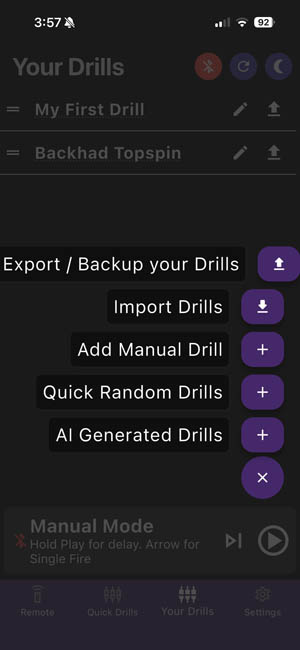
Choose “Export / Backup your Drills”.
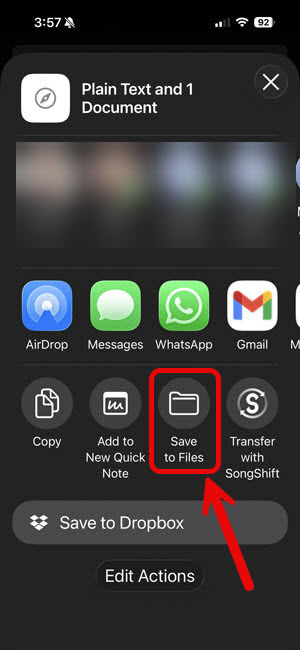
Tap “Save to Files”.
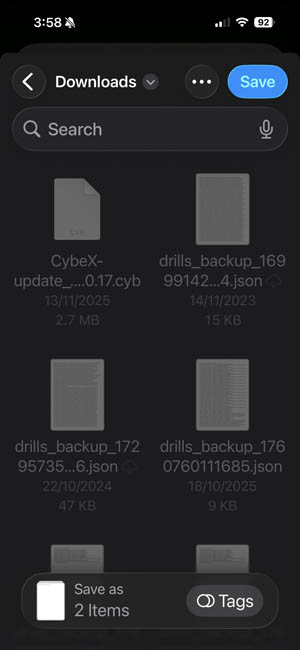
Tap the blue “Save” button. Your drills will now safely be backed up to your phone.
Deleting drills
Continuing with the example above, if we would like to delete the two drills we have, we simply swipe from right to left on the drill.
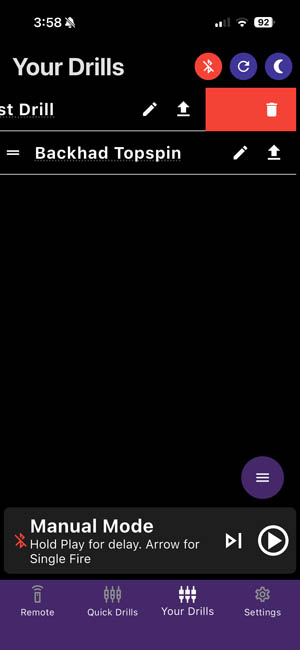
Tap on the trash can icon to delete the drill.
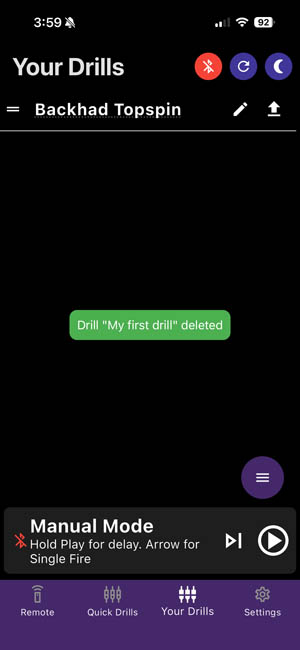
Once you have delete both of them, you will be left with the following screen.
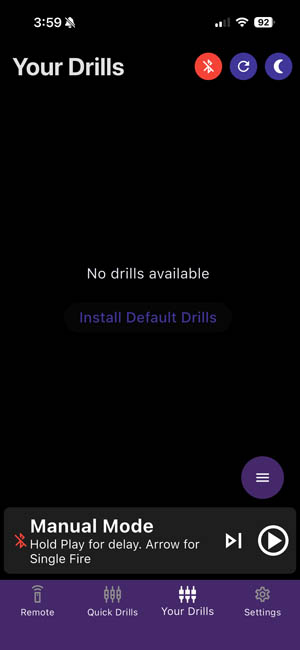
Restoring drills
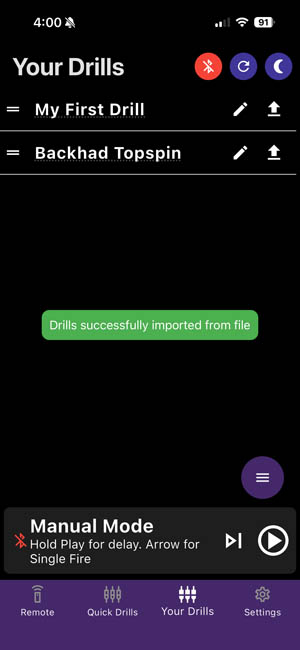
To restore the two drills that we backed up earlier, click on the hamburger menu again. This time, choose “Import Drills”.
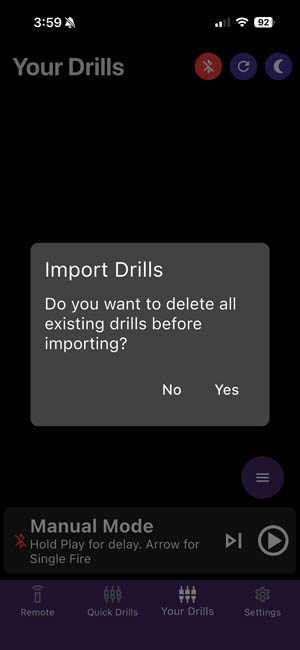
In this case, we have already deleted all of our drills, so we can select No to this question. But if you want a quick way to delete all your drills during the import process, you can select Yes here.
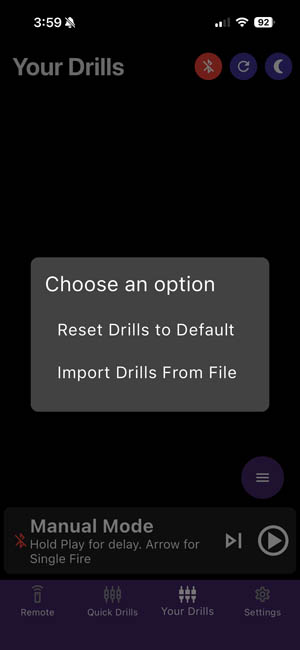
In this example, we want to re-import the drills that we backed up earlier, but you can also import the default drills again at any time. Note, if you do wish to import the default drills, it will import the drills relevant for the sport type you’ve chosen. So if your machine is set to tennis, then it will import the tennis drills. If you use your machine for both tennis and padel, you may wish to import both sets of drills. To do this, first import the tennis drills, then set your machine to the sport type padel, then import the default drills again (choose “No” when asked if you want to delete all existing drills before importing).
To continue this example, we will choose “Import Drills from File”
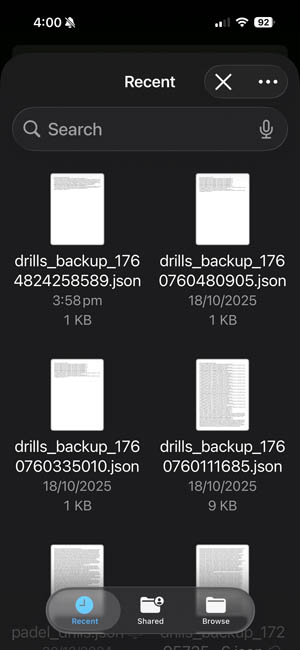
Select the file based on the time/date you saved it. In the above example, we saved it today, so it’s showing as 3:58pm.
Sharing drills
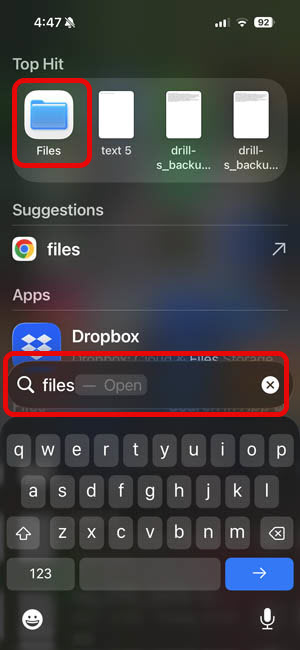
Find and open the “Files” app on your phone:
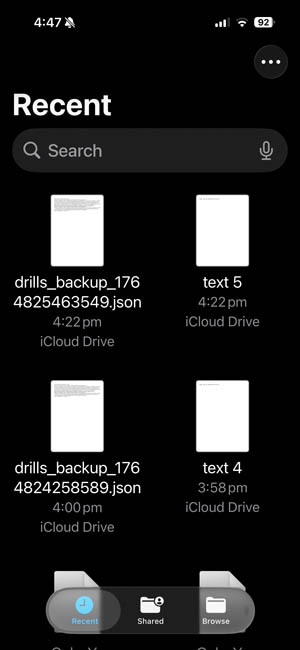
Select the file you exported your drills to. It will be one of the JSON files and can usually be easily identified by the time/date you exported it.
Open the file you wish to share.
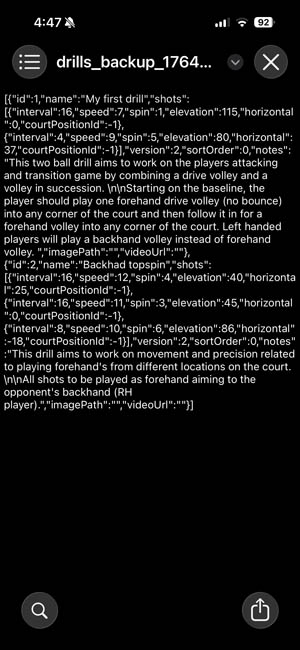
In the bottom right hand corner, tap the share icon.
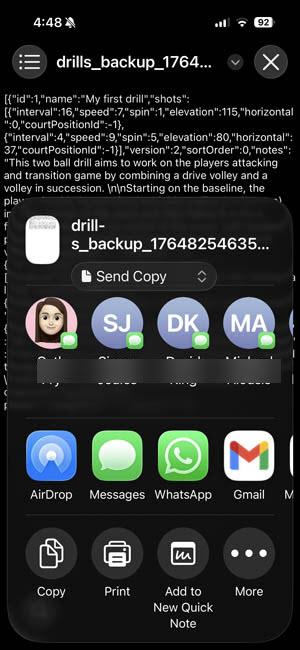
You can then send the file to your friend, coach or anyone you wish, via SMS, email, airdrop or your preferred method. They can save the file and import it using the process above.