


Why resetting the software might be required
- If certain errors (e.g., OVERCURRENT DETECTED when the main motors start up) are preventing the machine from starting normally and may be resolved by a software upgrade.
- If the machine is presenting unusual problems/glitches like flickering LCD light.
Note: this procedure writes a fresh copy of the software on the motherboard. This does not overwrite any custom settings. If you want to restore default settings please use the Reset Settings option in Settings>Advanced Settings inside the Spinfire app.
Resetting options
There are two ways to overwrite the existing software on your machine:
-
USB Upgrade Procedure – Recommended if upgrade using the app is not working. Follow the USB upgrade instructions provided here.
-
Using the Spinfire App – Follow the procedure below to attempt the OTA upgrade again.
Remove the USB connected to the machine (if any):
Remove the screws holding the control panel to the machine body to access the USB board on the rear of the control panel. The images below shows the four screws that need to be removed and the location of the USB port on the rear of the control panel:


Loading into the bootloader:

If you are using an external power source (AC adapter or external battery), connect it to the machine. When ready to power on, flip the master switch to the power source you are using. Press and hold the POWER and LEFT buttons together. The LCD will light up and display a 5-second countdown.
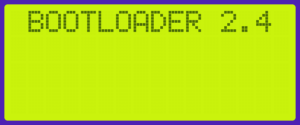
When the countdown reaches 0 the screen will display “BOOTLOADER 2.4”. If the screen only shows “BOOTLOADER” (without a version) or a version lower than 2.4, the bootloader will not proceed as described below. In this case, please follow the USB upgrade procedure provided here, or contact your nearest Spinfire distributor to have the bootloader upgraded.
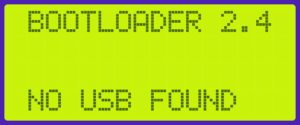
The motherboard will then search for a connected USB drive. If no USB is detected within 10 seconds, the screen will display “NO USB FOUND”.
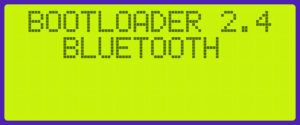
Since no USB was found the machine will default to Bluetooth upgrade mode.
Upgrading the software:
Follow steps from the help article here to complete the upgrade.
For any further troubleshooting, please contact your local distributor.